How to Add and Remove Users
In LaunchPath, you can manage who has access to your account by:
- Authorizing new users to join a program,
- Delivering email invitations to newly authorized users, and
- Removing user access to your account such that the user(s) in question are blocked from accessing any of your LaunchPath programs.
How to Authorize Users to Join an Innovation Program#
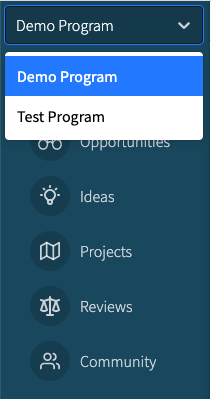
To authorize users to join an innovation program: Navigate to the desired program using the Program Selector located at the top of the navigation menu.
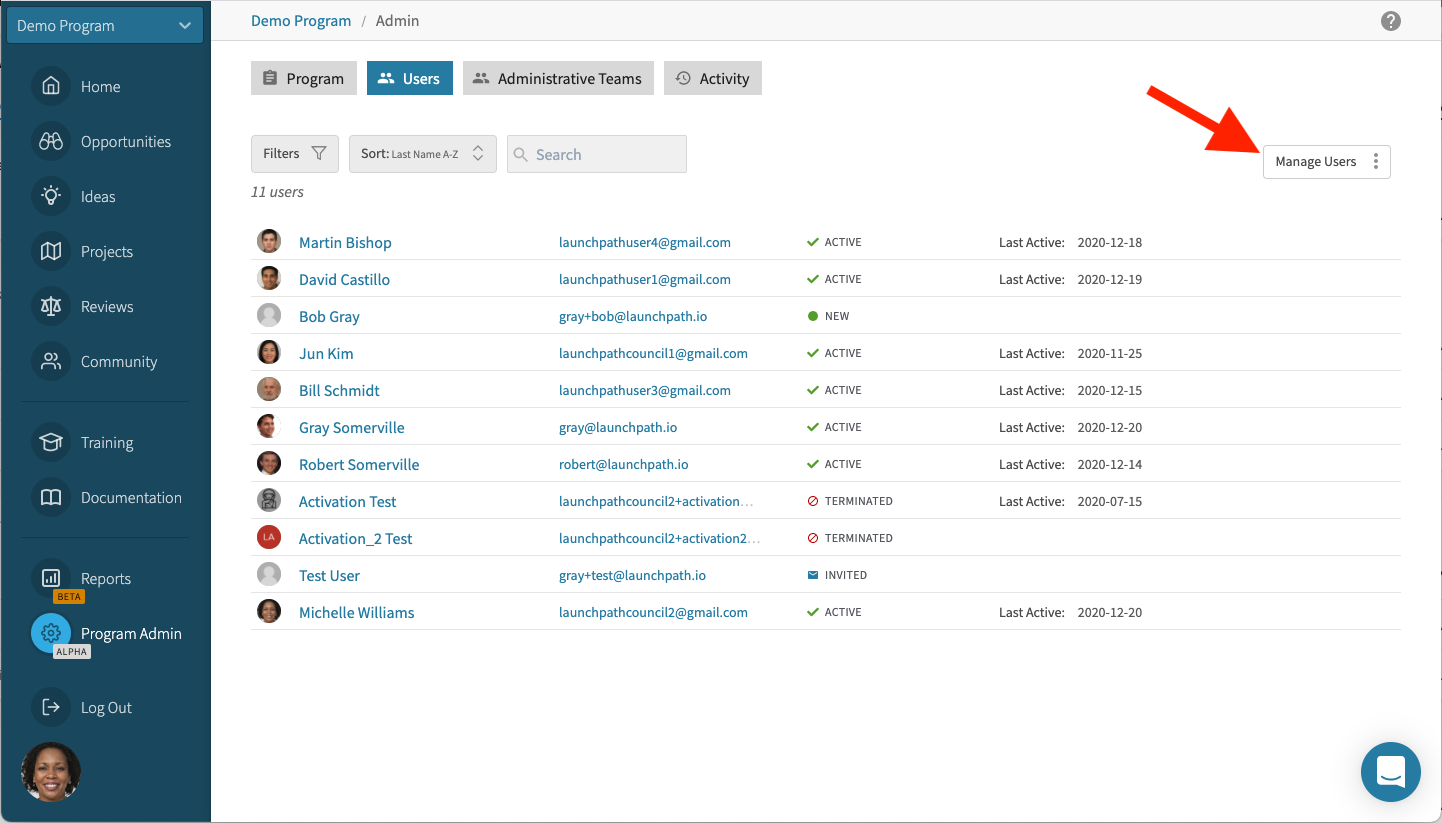
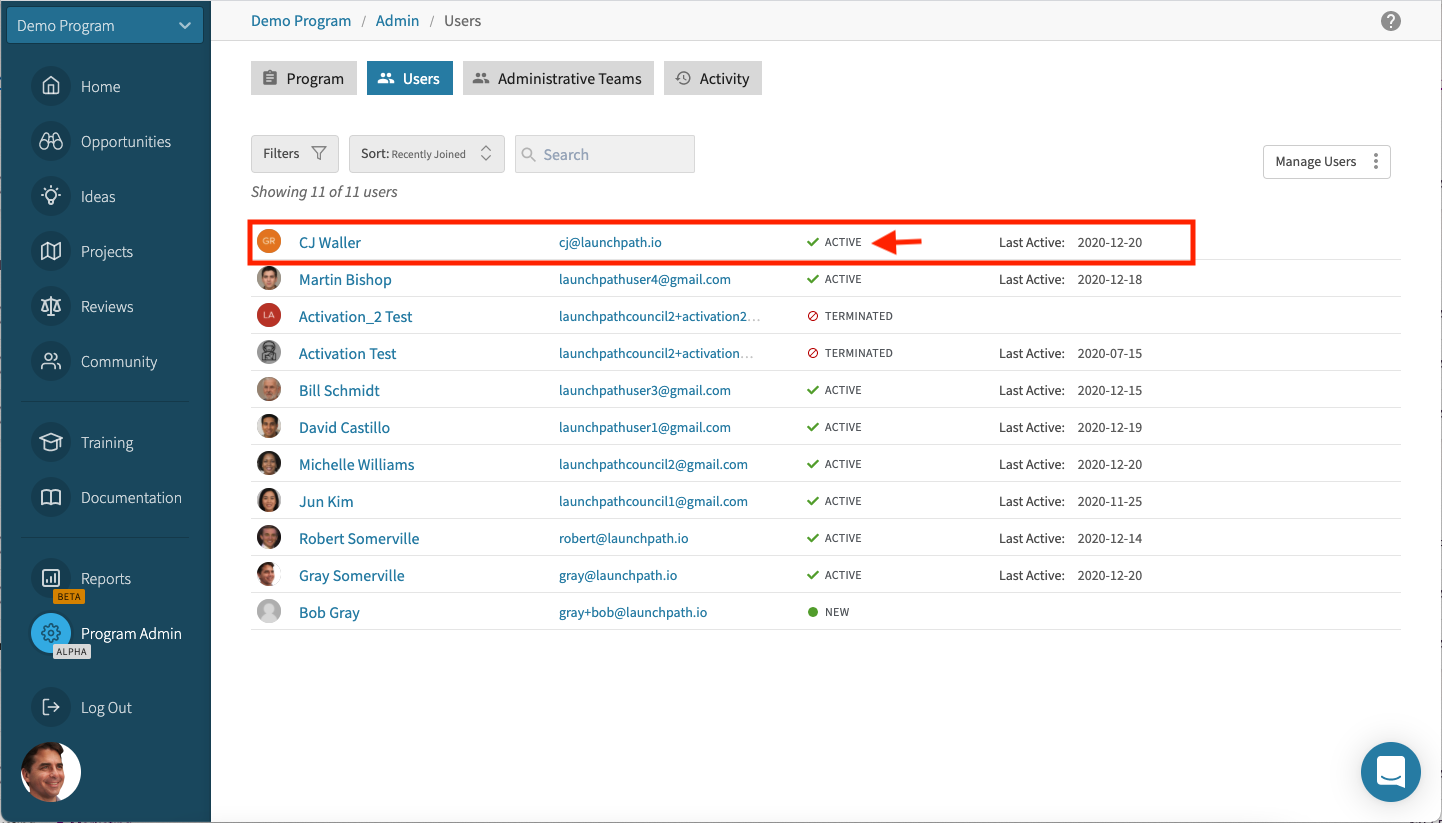
Go to Program Settings > Users, where you will see a screen that looks like this, with a button on the right labeled, "Manage Users."
To create and authorize user accounts one-by-one#
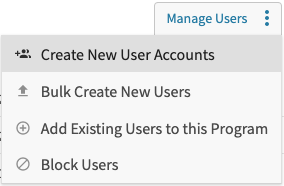
Hover over the Manage Users button and select "Create New User Accounts."
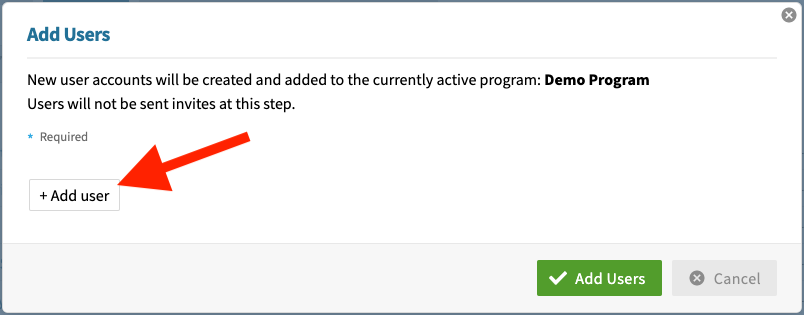
Select the "Add user" button.
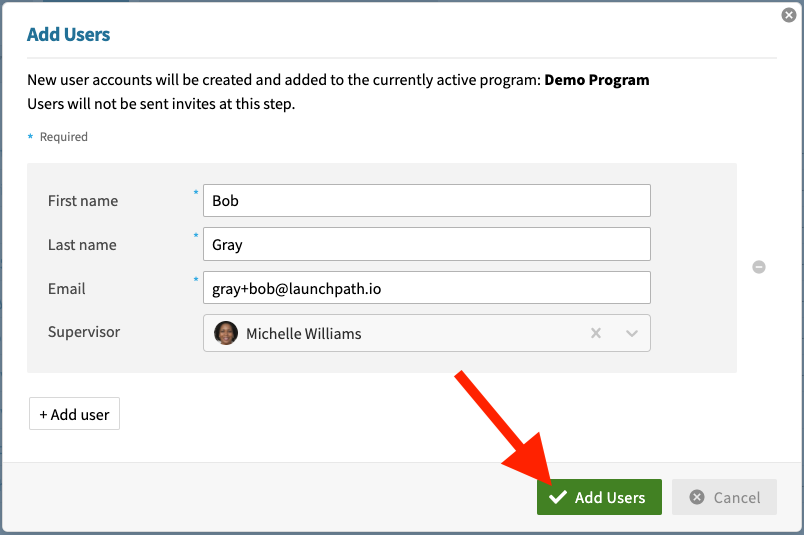
Fill out the form and then select the green Add Users button.
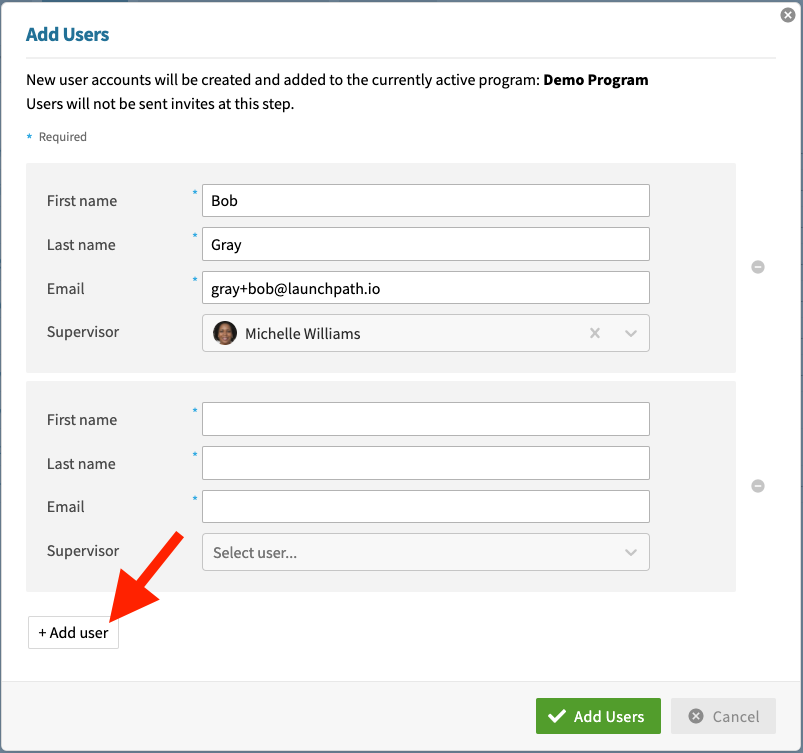
If you have more than one user to add, select the +Add user button before saving your selections.
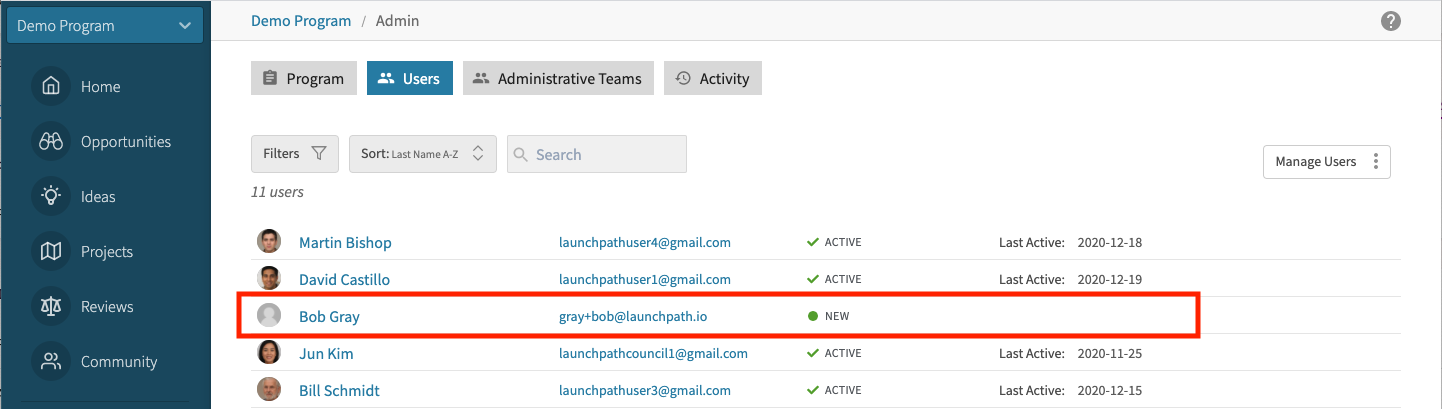
Even though your new user(s) have not yet received an invitation to join the program, the accounts have now been created and authorized and will appear in the list of all authorized user accounts for the program. (If you don't immediately see the new user(s), try refreshing your internet browser).
To create and authorize user accounts in bulk#
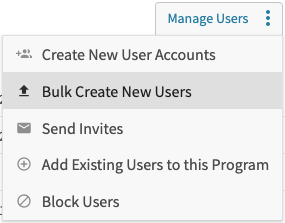
Hover over the Manage Users button and select "Bulk Create New Users."
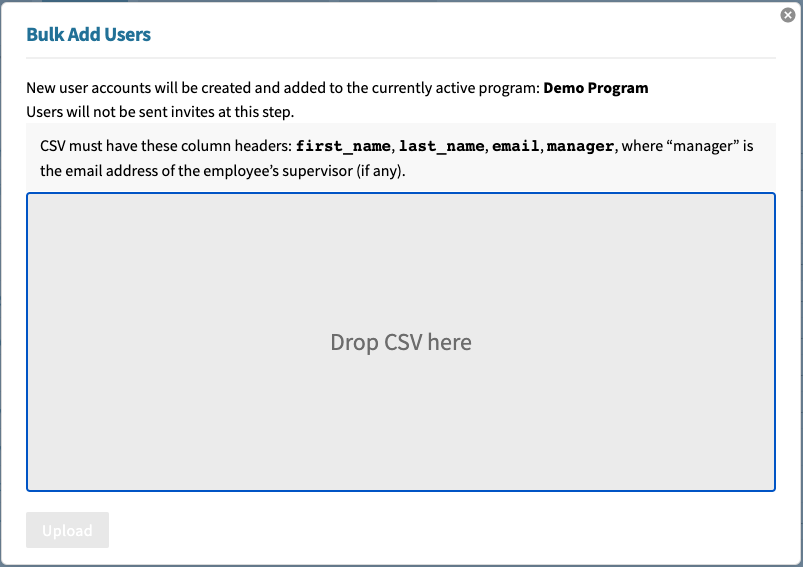
Follow the on-screen instructions being careful to format your csv file exactly as specified in the instructions.
Even though your new user(s) have not yet received an invitation to join the program, the accounts have now been created and authorized and will appear in the list of all authorized user accounts for the program. (If you don't immediately see the new user(s), try refreshing your internet browser).
To authorize current users of another program to participate in this program#
If your organization operates more than one innovation program using LaunchPath, you may wish to authorize certain participants in other programs to participate in your program. Here's how you do that:
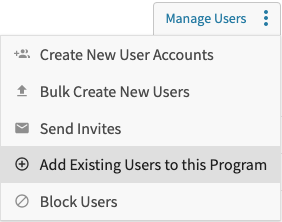
Hover over the Manage Users button and select "Add Existing Users to this Program."
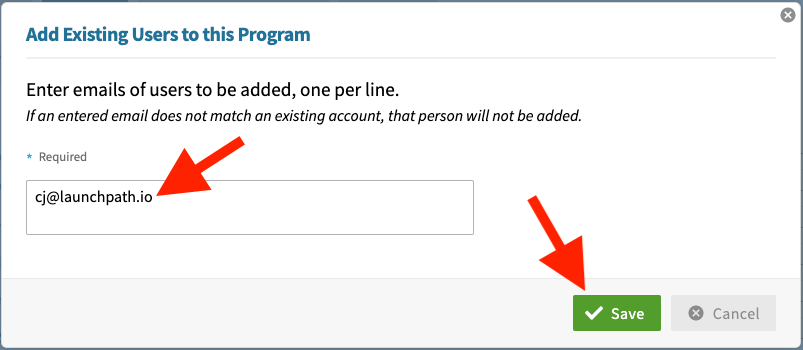
Enter the email addresses of the users you are authorizing to participate in this program (one per line) and select the "Save" button.
The user(s) will now appear as "active" within the program, which means that when they log into LaunchPath, they will be able to navigate to the program in question using the Program Selector drop-down list located at the top of the navigation menu.
How to Invite Newly Authorized Users to Activate Their LaunchPath User Account#
Once a new user account has been created within a given program, the user in question must then be invited to activate their account and log into LaunchPath. To invite users to activate their new LaunchPath user account:
Navigate to the user's program using the Program Selector located at the top of the navigation menu.
Go to Program Settings > Users, where you will see a screen that looks like this, with a button on the right labeled, "Manage Users."
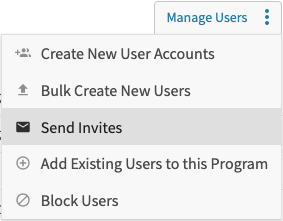
Hover over the Manage Users button and select "Send Invites." (NOTE: This option will only be available if there are user accounts in the program that have a status of "New." )
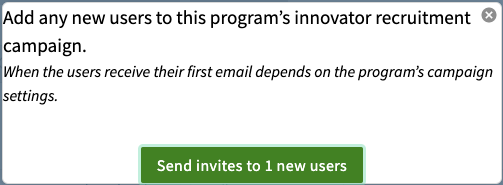
Confirm your intention to deliver the invites by selecting the green "Send invites to x new users" button.
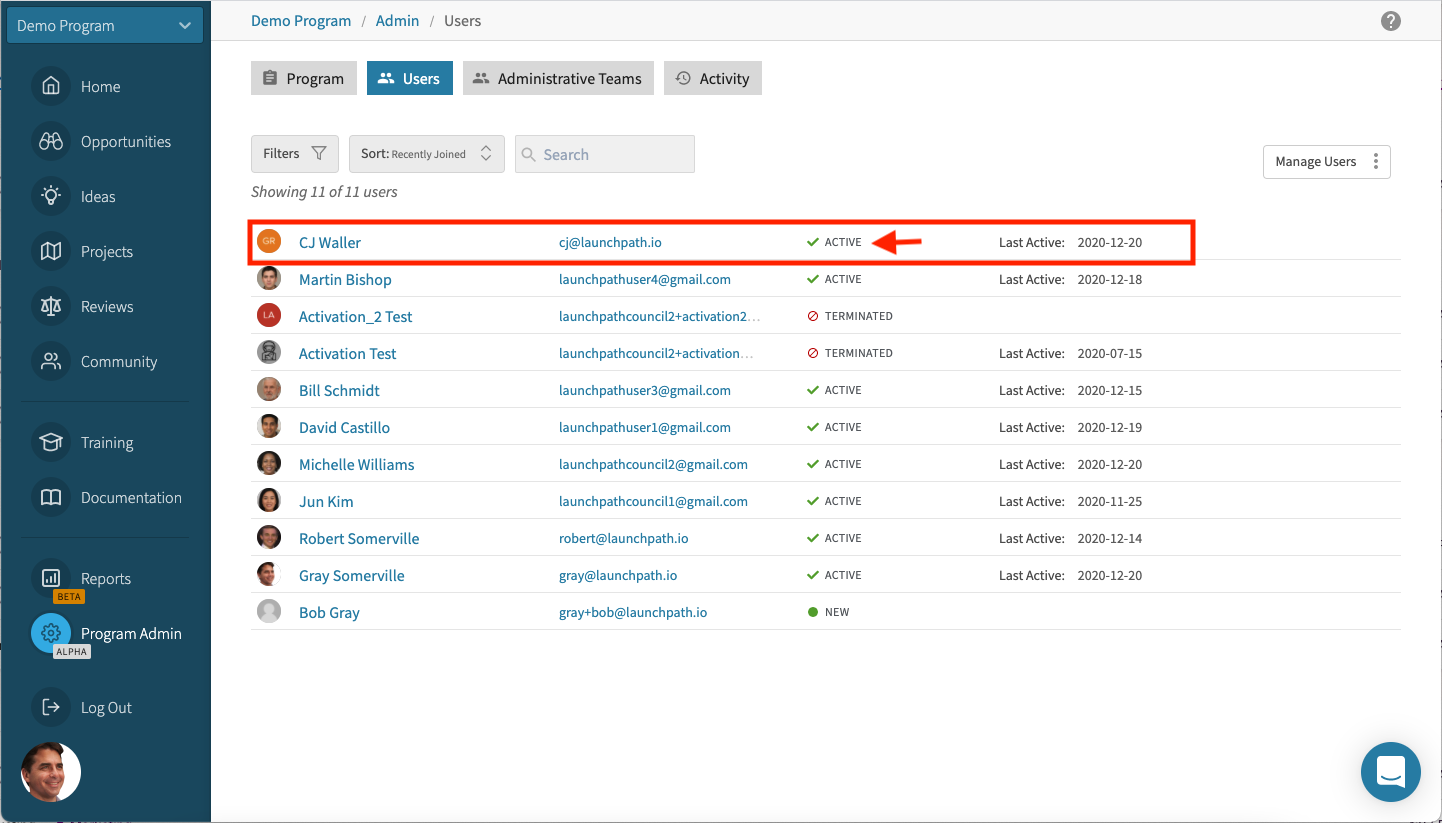
You will now see that the status of the user(s) has changed to "Invited," confirming that your invitation(s) have been delivered.
How to Remove User Access to All Programs#
To remove one or more user's access to all programs within your LaunchPath account:
Navigate to any program where the user(s) in questions are currently listed as users using the Program Selector located at the top of the navigation menu.
Go to Program Settings > Users, where you will see a screen that looks like this, with a button on the right labeled, "Manage Users."
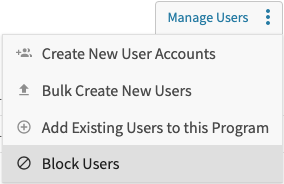
Hover over the Manage Users button and select "Block Users."
Enter the email address(es) of the user(s) to be blocked, and select the Save button.
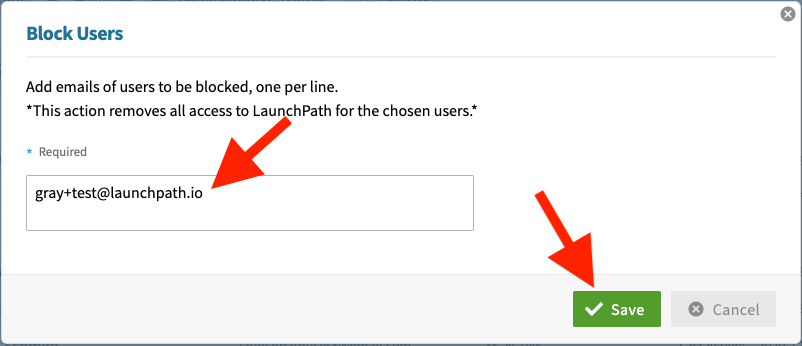
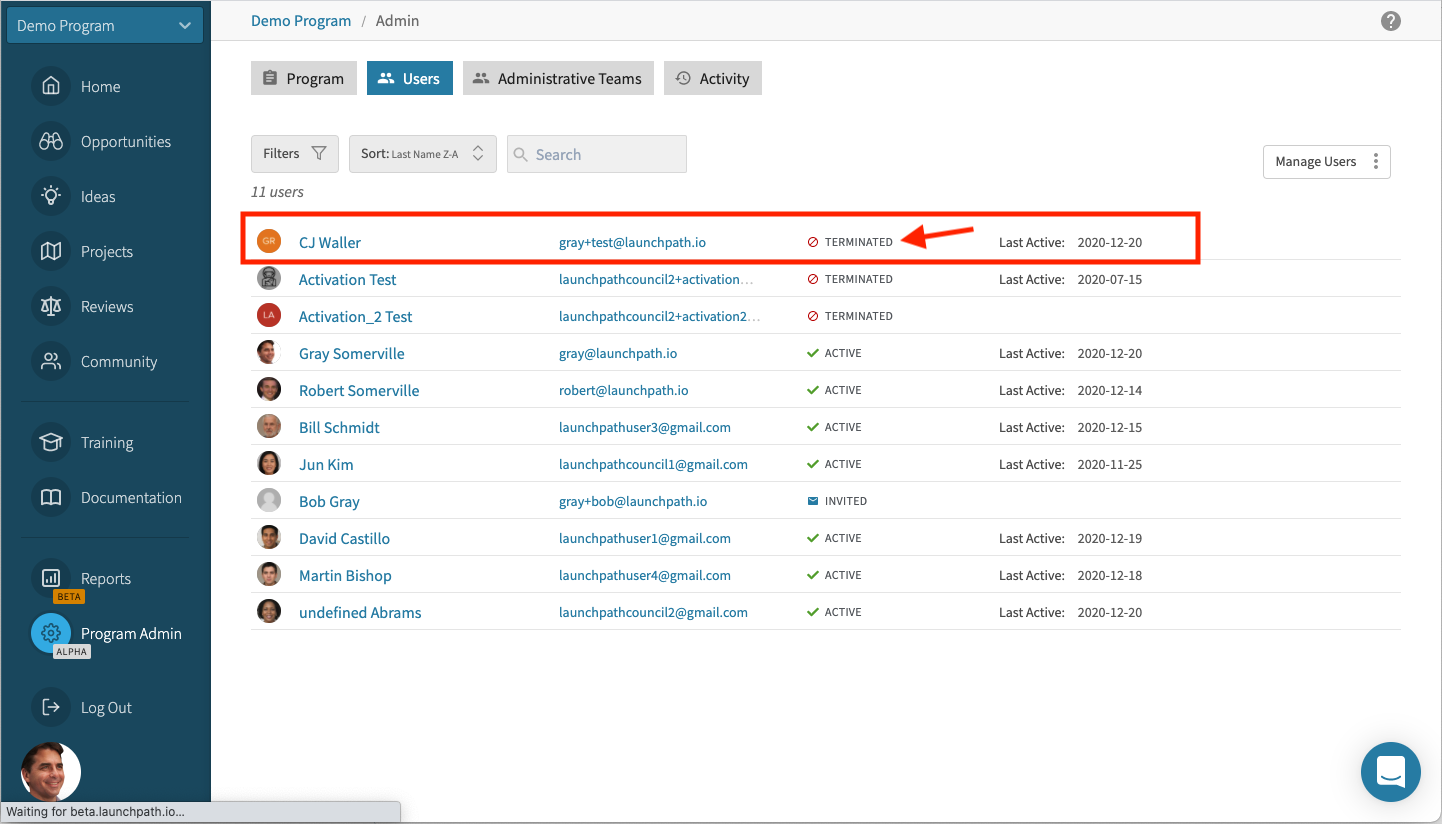
All blocked users will now be displayed with a status of "Terminated" on the Program Settings > Users page